

If you use Maya for animation, you probably already know the problem: it’s not always the difficult stuff that eats up your time.
Sometimes it’s those small operations you keep doing over and over. You move some keys, fix the timing, copy a pose, mirror something, switch IK/FK… nothing complicated, but after doing it for the twentieth time, you inevitably start thinking: “Do I really have to go through all these steps every single time just to do this?”
And that’s exactly where KeyFlow comes in.
👉 Try KeyFlow free for 30 days
Developed by Darwin Giordano under the Fenix Animator brand, KeyFlow is a toolkit for Autodesk Maya that brings together more than 70 tools organized into 14 groups, mainly focused on the “mechanical” side of animation that surrounds the creative decisions: timing, tweening, mirroring, pose transfer, key management, IK/FK, space switching and temporary controls.
What makes it interesting, though, isn’t just the number of tools.
It’s the idea behind them: if an operation becomes annoying by the twentieth shot, it probably deserves a button.
KeyFlow isn’t here to teach you how to animate
Let’s start with an important distinction.
KeyFlow isn’t one of those tools that promises to “automate animation.” It doesn’t decide whether a pose works, it doesn’t know if your acting is convincing, and it doesn’t replace the animator’s eye.
Its job is everything that happens around the creative decisions.
You’ve already decided where a key should go? KeyFlow helps you move it. Want to build a breakdown? There’s a tweener. Want to mirror a pose on a rig with a naming convention that looks like an archaeological artifact? KeyFlow can handle it.
Need to switch from IK to FK without making the hand suddenly jump across the room? That too.

It’s a pretty straightforward approach: Maya already knows how to do many of these things, but getting to them often means going through menus, commands, temporary scripts or a number of clicks that, after a while, simply become part of your everyday workflow.
KeyFlow tries to turn those operations into buttons.
Over 70 tools for animation in Maya
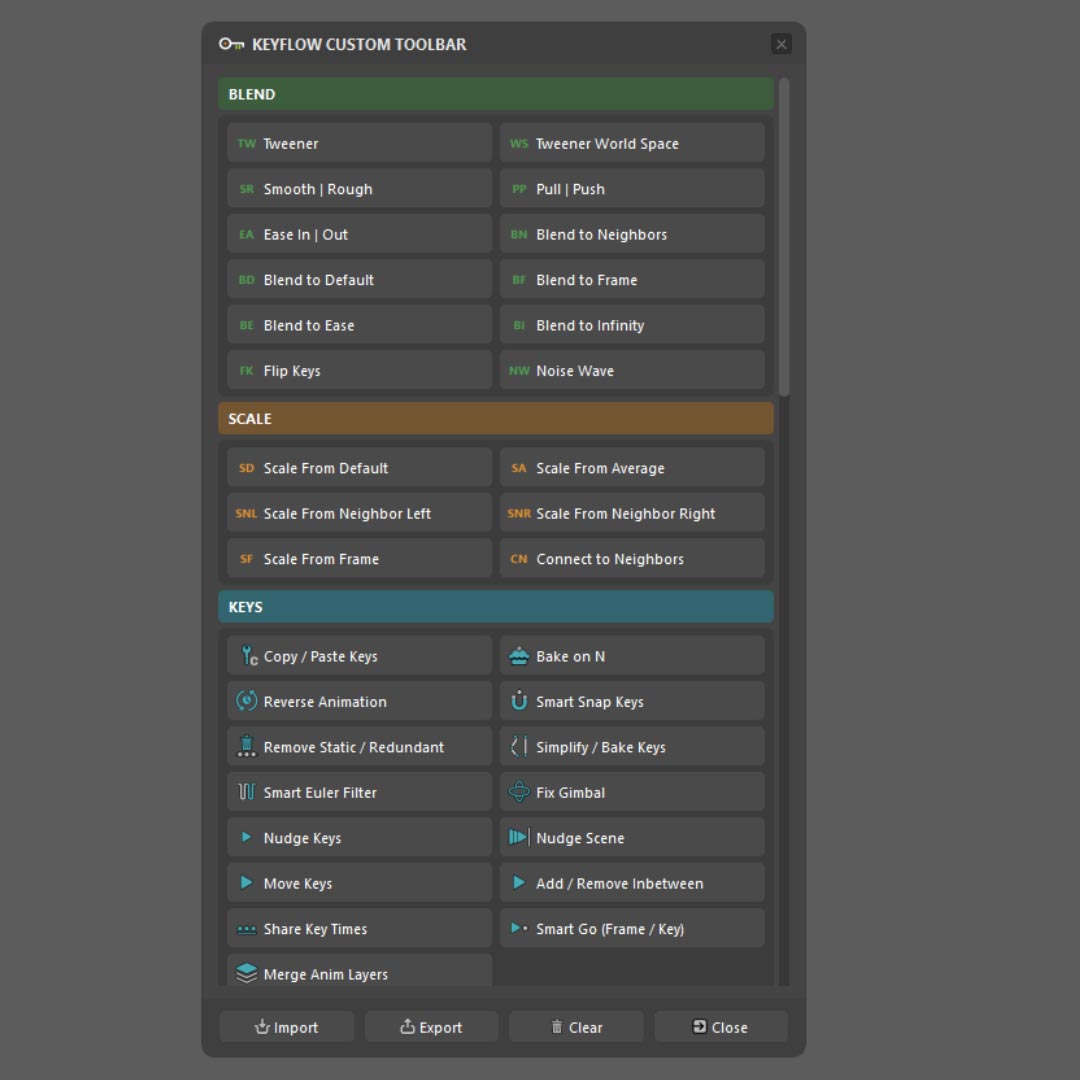
The toolkit currently includes more than 70 tools divided into 14 groups. The goal, of course, isn’t to use everything, but to build a custom toolbar with the tools that actually fit your workflow.
Tweener, build a breakdown between two keys
One of the most interesting modules is the one dedicated to tweening.
Because “put something between these two poses” can actually mean quite a few different things.
The classic Tweener interpolates the current pose between the previous and next key, but it can also push beyond the existing values when you need to create a more exaggerated breakdown.
There’s also Tweener World Space, designed to preserve the character’s path through the scene, along with tools such as Blend to Neighbors, Blend to Default and Blend to Ease.
The module also includes tools to smooth, roughen, reverse or slightly dirty up the animation with some noise when the movement has become a little too clean.
The nice thing is that you don’t necessarily have to enter numbers: these tools use sliders. Drag, see what happens, and stop when the pose feels right.
For an animator, that’s often a much more natural interface than typing in a percentage and hoping the result is what you had in mind.
Mirror and poses without fighting the naming convention
Mirroring is one of those cases where an apparently simple operation can become surprisingly annoying, especially when working with different rigs.
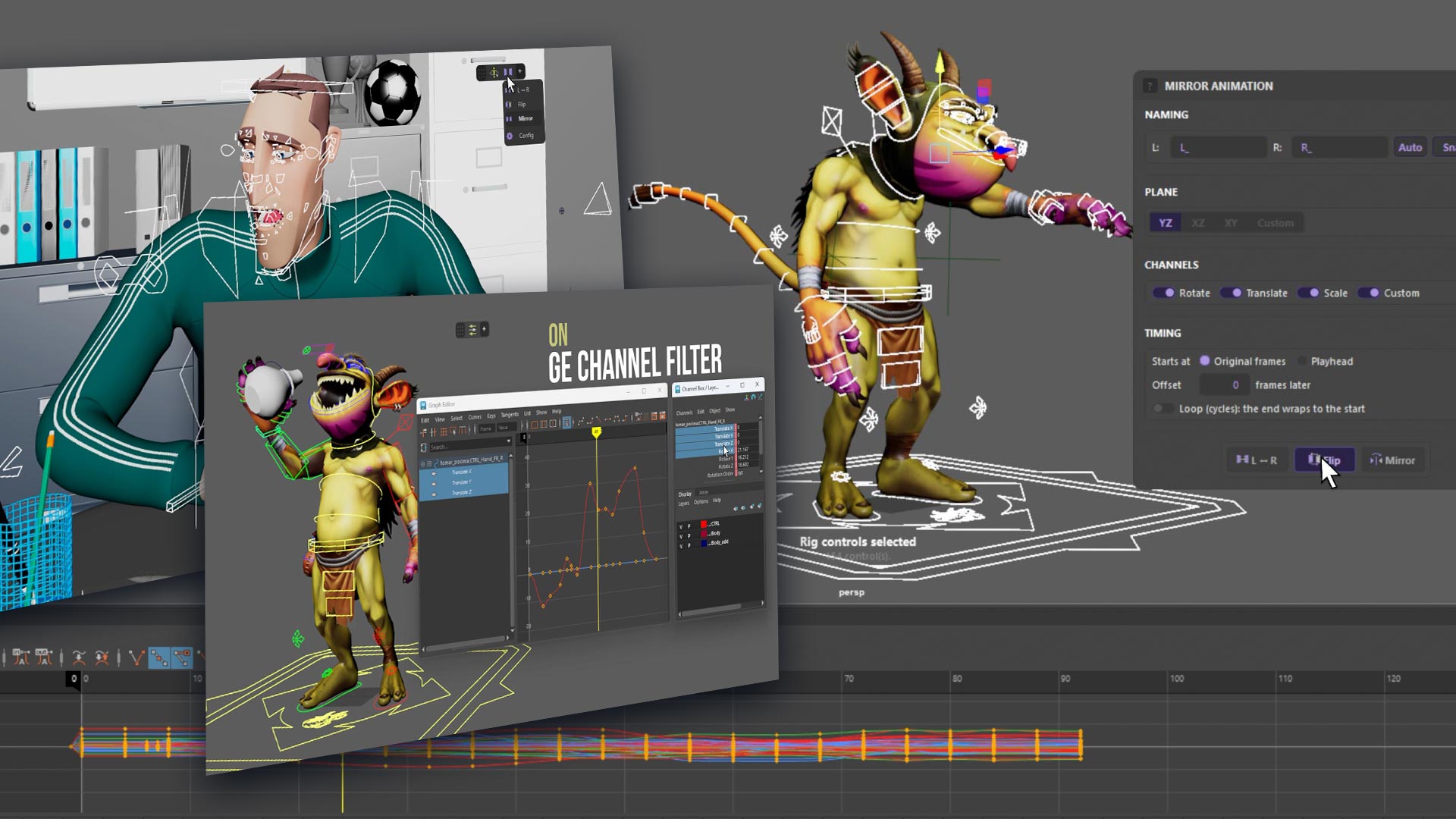
KeyFlow takes the opposite approach: its mirror and flip tools work based on the rig, without requiring a specific naming convention.
You can mirror a pose, but you can also work on an entire section of animation.
For cycles, there’s also the option to apply the mirror to a range with offset and looping, keeping the behavior consistent throughout the sequence.
Copy & Paste poses, with more control
KeyFlow lets you copy and paste poses and animation either completely or by selecting only the channels you need.
It’s one of those features that doesn’t sound particularly exciting on paper. Then you use it fifty times during a workday and suddenly wonder how you ever managed without it.
World Lock and the eternal foot slide problem
Anyone who has animated a cycle already knows where this is going.
You moved the character. You fixed the layout. Everything looks good.
Then you look at the feet.
And suddenly your character is skating across the floor like they’ve just discovered ice.
World Lock in KeyFlow is designed for exactly this kind of situation: fixing foot slide after moving the character in space without destroying the bounce of the animation.
It’s not the kind of feature that looks particularly impressive on a product page, but it can potentially be very useful during a normal production day.
IK/FK Switch without the classic “why did it jump?”

Another danger zone: changing animation modes in the middle of a sequence.
With IK/FK Switch, KeyFlow switches from one mode to the other while trying to preserve the pose, avoiding the classic jump that then forces the animator to chase the control’s new position.
The same principle applies to Space Switch.
A control can change its reference, for example switching from world space to another control, while maintaining pose continuity.
Temporary Controls: disposable rigging, in the best possible way
Every animator eventually reaches the moment when they think:
“I really need a control right here.”
The problem is that “right here” might only exist for that particular shot.
And that’s when the whole process begins: request to rigging, explanation, waiting, rig modification, new version, testing and maybe, after all that, you realize you actually needed the control somewhere else.
KeyFlow includes Temp IK, Temp Pivot and Temp Controls specifically to avoid turning every temporary need into a permanent rig modification.
Create the temporary control, animate what you need and then remove it.
The official rig stays exactly as it was.
For a freelance animator, that’s convenient. For a production pipeline, it can be even more interesting, because it allows you to solve certain shot-specific problems without necessarily asking the rigging department to modify the character.
A single Undo operation
There’s also a design choice that can make a difference in production.
KeyFlow operations are treated as a single Undo operation.
It sounds like a small thing until you use a script that changes twelve things and then discover that you need to press Ctrl+Z twelve times to go back.
Pose tools also leave the rig’s switches untouched instead of trying to blend values that shouldn’t be blended.
In other words: IK/FK 0.5 isn’t a particularly useful middle ground. It’s just a broken arm.
A custom toolbar instead of 70 buttons all at once
More than 70 tools sound great until you have to find the one you actually need.
KeyFlow keeps things pretty simple: you don’t have to use everything.
The toolbar is built by the animator. You can add the tools you actually use and leave everything else out.
The layout and hotkeys are also preserved through updates, so you don’t have to rebuild your setup every time the toolkit gets updated.
Shortcuts are added to your existing Maya hotkey set instead of forcing you to use a separate system.
For anyone who works with a certain amount of muscle memory every day, that’s a pretty sensible choice.
Tooltips, shortcuts and videos: discovery is visual
If you don’t know what a button does, hovering over a tool shows a card with the tool description, its associated shortcut and a short clip showing the tool in action.
It’s an interesting system, especially for people discovering KeyFlow without already knowing what all of its tools do.
The project also has a YouTube channel dedicated to KeyFlow, where demos and breakdowns of individual tools are published.
KeyFlow keeps growing
Another interesting aspect is that KeyFlow doesn’t seem to be designed as a finished, closed product.
Darwin Giordano uses the toolkit in his own animation work, and new tools are added based on the needs that come up during the workflow.
Updates are free and can be checked directly from KeyFlow.
It’s a philosophy that’s fairly close to the way many production tools actually grow: don’t add features just to increase the feature count, add them because someone ran into the same problem often enough to decide it needed a button.
KeyFlow license: how much does it cost?
The individual KeyFlow license costs $79 and includes two activations.
One interesting detail is that the second activation doesn’t necessarily have to be used on the same artist’s second computer: it can be assigned to a colleague.
The licenses are perpetual and transferable.
After the initial online activation, KeyFlow does not require a constant connection to the server. Update checks are performed when requested by the user.
Studio licenses
| License | Machines | Price |
|---|---|---|
| Individual | 2 activations | $79 |
| Studio | 10 machines | $499 |
| Studio | 30 machines | $999 |
Studio licenses are managed per machine, with machine codes submitted in order to receive the license package. It’s a manual process, so this isn’t a centralized deployment system with a dashboard and automated management.
Compatibility: which Maya versions does KeyFlow support?
KeyFlow is available for Autodesk Maya 2024, Maya 2026 and Maya 2027.
The list is specific and shouldn’t be interpreted as generic compatibility with every version in between.
Another limitation to keep in mind is the operating system: KeyFlow is currently available for Windows.
For studios with mixed Windows/Linux/macOS pipelines, this is therefore something to consider before adopting it as a standard.
And, as always when introducing a new tool into production, the most important rule is: test it on your actual rigs before making it a pipeline standard.
The free trial lasts 30 days
The good news is that you don’t have to buy it on faith.
The KeyFlow trial lasts 30 days, unlocks all the tools and doesn’t require a credit card or email address.
The process is simple: on the official product page, choose the free option, install KeyFlow and activate the trial directly from Maya.
If you decide after the trial that it’s worth the $79, the same installation can be converted to a full license without downloading the software again.
👉 Try KeyFlow free for 30 days
KeyFlow: is it worth it?
It really depends on what kind of animator you are.
If you animate occasionally and have already built your own ecosystem of scripts, shelves and hotkeys, you probably don’t need another toolkit promising to revolutionize Maya.
But if you spend eight hours a day inside Maya and constantly find yourself thinking:
“Why do I have to go through all these steps just to do this?”
then KeyFlow becomes much more interesting.
Not because it does something Maya can’t do.
Quite the opposite.
Its strength is taking things Maya can already do and turning them into immediate operations.
Tweening, mirroring, pose transfer, timing, IK/FK, space switching, temporary controls and World Lock.
A collection of small, everyday problems that are painfully familiar.
And maybe that’s the whole point.
A good animation tool shouldn’t make you think about the tool. It should help you get to the next pose a little faster.
KeyFlow seems to be aiming for exactly that.
KeyFlow at a glance
| Feature | Details |
|---|---|
| Developer | Fenix Animator – Darwin Giordano |
| Category | Animation toolkit for Autodesk Maya |
| Tools | 70+ tools in 14 groups |
| Supported Maya versions | 2024, 2026, 2027 |
| Operating system | Windows |
| Trial | 30 days, free and fully unlocked |
| Individual license | $79, 2 activations |
| Studio license | $499 / 10 machines |
| Studio license | $999 / 30 machines |
| Updates | Free |
| License | Perpetual and transferable |
| Version at the time of writing | 1.2.9 – September 20, 2026 |
Videos and resources
- Tweener – Building a Breakdown Between Two Keys
- Mirror Pose – Animation
- Copy | Paste Pose
- Blend Tools – Tweening Module
- Keys Tools
- Install KeyFlow in Maya
Where to find KeyFlow
KeyFlow is available directly from the official Fenix Animator product page, where you can also download the 30-day free trial.
👉 Discover KeyFlow and download the free trial
For more videos and tool demos, you can also check out the official KeyFlow YouTube channel.